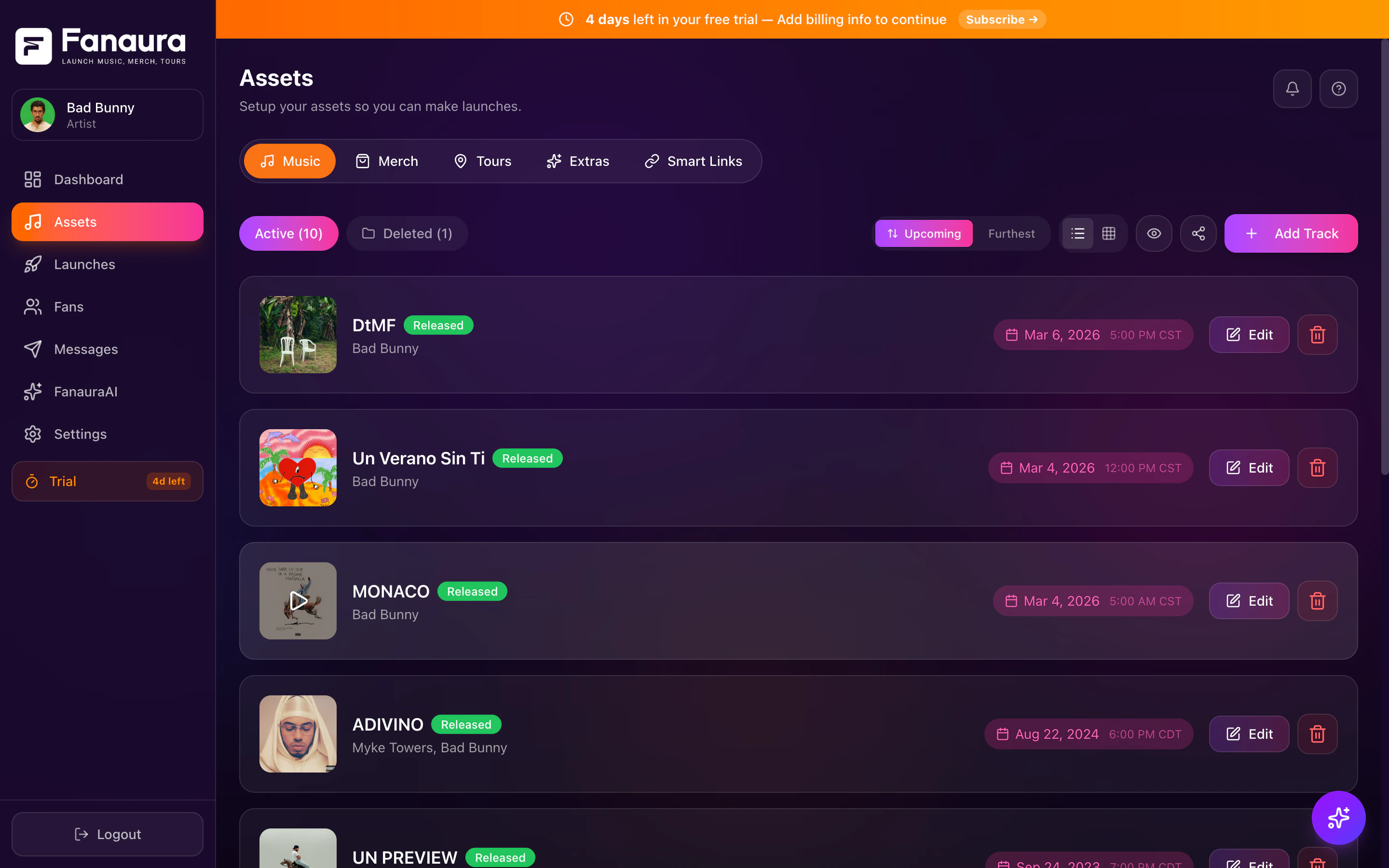
Opening the Add Track Wizard
- Navigate to Assets from the sidebar.
- Make sure you are on the Music tab.
- Click the ”+ Add Track” button in the top-right corner.
Step 1: Track Info
This is where you enter the basic information about your release and upload your artwork.Song Title (Required)
Enter the title of your song, single, or EP. This is the main title fans will see on your smart link page and pre-save landing page. Examples:- “Midnight in Nashville”
- “Summer Tour EP”
- “Blinding Lights (Acoustic)“
Artist Name (Auto-filled)
Your artist name is automatically pulled from your Fanaura profile. It appears as a read-only field so you can confirm it is correct. If you need to change your artist name, update it in your account settings.Album Name (Optional)
If this track belongs to an album or EP, enter the album name here. This is purely informational — it helps organize your catalog and appears in metadata lookups. Leave this blank if the release is a standalone single.Artwork Upload
Upload your album or single artwork by:- Clicking the upload area to open a file picker, or
- Dragging and dropping an image file directly onto the upload zone.
- Maximum file size: 5 MB
- Supported formats: JPG, PNG, WebP
- Recommended dimensions: 3000 x 3000 pixels (square) for best quality across all platforms
Tip: Use the same artwork you are submitting to your distributor. Consistency across platforms helps fans recognize your release instantly.
What Happens Next
Click “Next” to move to Step 2. You must enter at least a song title to proceed.Step 2: Codes (ISRC and UPC)
This step is where you enter your industry identification codes. Both fields are optional — you can always add them later.ISRC Code (Optional)
The International Standard Recording Code is a unique identifier for your recording. It looks like this:US-ABC-24-12345.
When you enter an ISRC and click the lookup button, Fanaura searches across streaming platforms to find your track. If found, it can auto-fill:
- Album name
- Release date
- Artwork (if you have not uploaded one yet)
- Streaming links (Spotify, Apple Music, YouTube Music)
Tip: Do not have your ISRC yet? That is totally normal. Most artists get it from their distributor 1-2 weeks before release. Add it later from your release management page — the pre-save campaign works perfectly without it.For a deep dive on ISRC codes, see ISRC and UPC Explained.
UPC Code (Optional)
The Universal Product Code identifies your release as a product (the album or single package as a whole, not the individual recording). Your distributor assigns this. Enter it here if you have it. Like ISRC, it is optional and can be added later.What Happens Next
Click “Next” to move to Step 3. If you performed an ISRC lookup and selected fields to import, those values are applied automatically when you advance.Step 3: Dates
This is the most important step for setting up your pre-save campaign. You will configure three key dates and choose your timezone.Announcement Date (Optional)
The date you plan to publicly announce the release. This is informational — it helps you plan your rollout timeline. Example: You might announce on March 1 that a new single is dropping on March 15.Pre-Save Open Date
The date and time when your pre-save page becomes active and fans can start pre-saving. Before this date, your smart link page shows a “Coming Soon” state. Example: You announce on March 1, then open pre-saves on March 3 to build momentum before the March 15 release.Tip: If you want pre-saves to open at the same time as your announcement, check the “Same as Announcement” checkbox and the date syncs automatically.
Release Date and Time (Required)
The date and time your music goes live on streaming platforms. This is the most critical date — it tells Fanaura when to:- Execute all pending pre-saves (saving the track to fans’ libraries on Spotify, Apple Music, etc.)
- Switch your smart link page from “Pre-Save” buttons to “Stream Now” buttons
- Start searching for streaming links using your ISRC code
Timezone
Select your timezone from the dropdown. This determines when your dates are interpreted. Common options include:- America/New_York (EST) — Most common for US releases
- America/Chicago (CST)
- America/Los_Angeles (PST)
- Europe/London (GMT)
Platform Selection for Pre-Save
Choose which streaming platforms fans can pre-save on. The available platforms are:- Spotify — The most popular pre-save platform. Requires fans to authorize via OAuth (their Spotify login). The track is automatically saved to their library on release day.
- Apple Music — Fans pre-add the track to their Apple Music library.
- YouTube Music — Fans pre-save to YouTube Music.
- Amazon Music — Fans pre-save to Amazon Music.
- Tidal — Fans pre-save to Tidal.
Live Mobile Preview
On the right side of the wizard, you will see a live preview of what your fan-facing landing page will look like on a phone. As you adjust settings, the preview updates in real time — you can see your artwork, title, platform buttons, and call-to-action exactly as fans will see them.Creating the Release
Once you have filled in your details and are happy with the preview:- Click “Create Release” (or “Save”).
- Fanaura creates your release, generates a smart link, and builds your fan-facing landing page.
- A success confirmation appears with your new smart link URL.
- You are redirected to the release management page where you can fine-tune settings, add platform links, and view analytics.
After Creation
Your release is now live in your Assets list. Depending on your dates:- Before announcement date: The release exists in your dashboard but is not publicly visible.
- Between announcement and pre-save date: Your smart link shows a “Coming Soon” teaser.
- Between pre-save and release date: Fans can actively pre-save on your smart link page.
- After release date: Pre-save buttons convert to “Stream Now” buttons, and Fanaura auto-fetches streaming links via your ISRC.
Quick Tips
- Upload artwork early. A release with artwork converts significantly better than one with a placeholder.
- Set your pre-save date a few days before release. Give fans time to discover and save your track.
- Add your ISRC before release day. This is what enables automatic streaming link fetching. No ISRC means you will need to add links manually.
- Share your smart link everywhere. Social media bios, Instagram stories, email signatures, text messages — the more places your smart link lives, the more pre-saves you collect.
- Use Flow Builder. Set up an automated flow that sends a thank-you message to every fan who pre-saves. It makes a huge difference in fan loyalty.
Next Steps
- ISRC and UPC Explained — Deep dive on what these codes are and where to find them
- Pre-Save Campaigns — How pre-saves work end to end
- Streaming Links — How Fanaura auto-fetches your links on release day
- Managing Releases — Editing, updating, and archiving your releases