

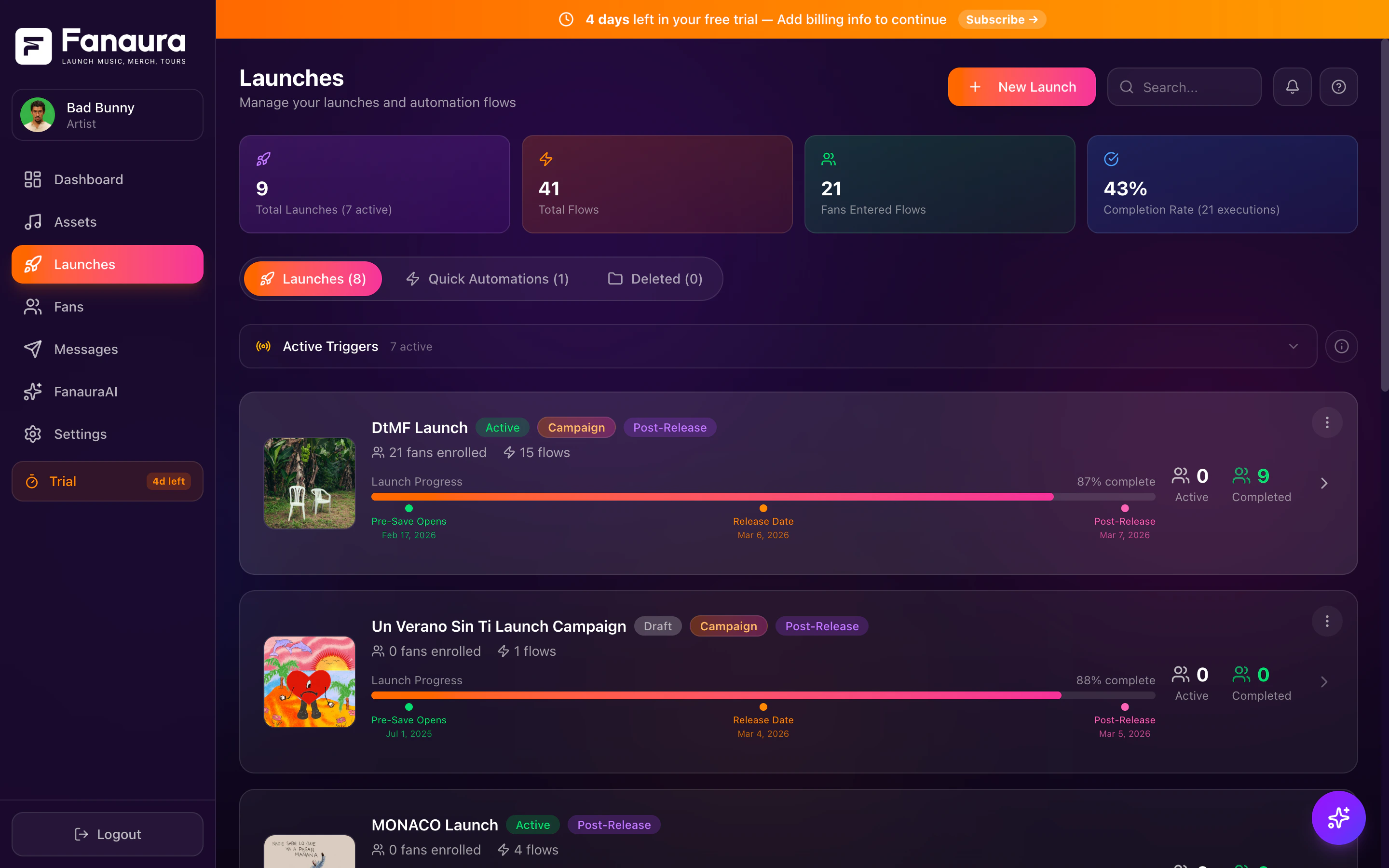
The Launches page showing your active and past campaigns with progress tracking.
The Launch Philosophy
Fanaura’s Launch system is inspired by Jeff Walker’s Launch methodology — the idea that structured campaign phases maximize fan engagement. Rather than blasting one message and moving on, you guide fans through a journey:1
Build Anticipation
Create buzz and excitement before the release with teasers, presave links, and exclusive previews.
2
Drive Action
On launch day, focus all energy on streams, ticket sales, or purchases with targeted messaging across every channel.
3
Sustain Momentum
After the release, keep fans engaged with follow-ups, behind-the-scenes content, and re-engagement campaigns.
Launch Types
When you create a new launch, you will choose one of these types:The Launches Page
Your Launches page is your command center. Here is what you will find:- Launches Tab
- Automations Tab
- Deleted Tab
All of your active and draft launches appear here. Each launch shows as a card with its title, type badge, progress bar, fan counts, flow count, and status.
Search and Filter
Use the search bar at the top to find any launch by name. You can also filter by:- Launch type (Music, Tour, Merch)
- Status (Draft, Active, Completed)
- Date range
Launch Cards
Each launch appears as a card showing you everything at a glance:- Title: The name you gave your launch
- Type Badge: A colored badge indicating Music, Tour, or Merch
- Progress Bar: Visual indicator of how far along the launch is (based on dates and fan activity)
- Fan Counts: Three key metrics — fans entered, fans currently active, fans who completed
- Flow Count: How many automation flows are attached to this launch
- Status: Draft, Active, or Completed
Creating a Launch
Click the “New Launch” button in the top-right corner of the Launches page. This opens the launch creation modal where you will choose your type, select your asset, set your dates, and name your campaign. See Creating a Launch for the full walkthrough.Launch States
Every launch moves through three states:Draft
Draft
The launch exists but is not active. No triggers are firing, no messages are being sent. This is your sandbox — build flows, configure settings, and get everything perfect before going live.
Active
Active
The launch is live. Triggers are firing, fans are being enrolled in flows, and messages are going out. You can still edit flows while a launch is active, but be mindful of fans already in progress.
Completed
Completed
The launch has run its course. All stages have passed, all flows have finished executing. Completed launches are read-only and serve as a historical record of your campaign performance.
What Makes Launches Powerful
Everything in One Place
Your email sequences, SMS blasts, Instagram DM automations, and fan segmentation all live under one launch.
Stage-Aware Automation
Flows know which phase of the campaign they belong to, so the right messages go out at the right time.
Multi-Asset Campaigns
Bundle a new album, tour dates, and merch into a single coordinated launch.
Conflict Detection
Fanaura warns you when two flows share the same trigger, preventing duplicate messages.
Accidentally delete a launch? You have 30 days to bring it back from the Deleted tab. After that, the launch and all associated flows are permanently removed.
Tips and Best Practices
- Set your dates early: Even rough dates help Fanaura calculate progress and schedule stage transitions
- Start in draft mode: Build and test your flows before going active
- Use the Active Triggers Overview: Before activating a launch, check for trigger conflicts with your other active campaigns
- Review completed launches: Your past launches are a goldmine of data — use them to improve future campaigns
Explore Launches
Creating a Launch
Step-by-step guide to setting up your first launch in about 60 seconds.
Cycle Stages
Understand Pre-Release, Release, and Post-Release stages and how they shape your automation.
Multi-Asset Campaigns
Bundle music, tours, and merch into a single coordinated campaign.
Progress & Timeline
How Fanaura tracks your launch progress and calculates completion percentage.
Active Triggers
A bird’s-eye view of every active trigger across all your launches.
Trigger Conflicts
Spot and resolve conflicts so fans never receive duplicate messages.
What Happens Next
Once you create a launch, you will land on the launch detail page where you can:1
Add Automation Flows
Create flows for each cycle stage with triggers, actions, and conditions.
2
Configure Your Flows
Set up triggers, actions, delays, and conditions in the visual Flow Builder.
3
Monitor Fan Activity
Track fan enrollment and view execution logs as your campaign runs.
4
Track Progress
Watch your progress bar advance as fans move through your campaign.