Overview
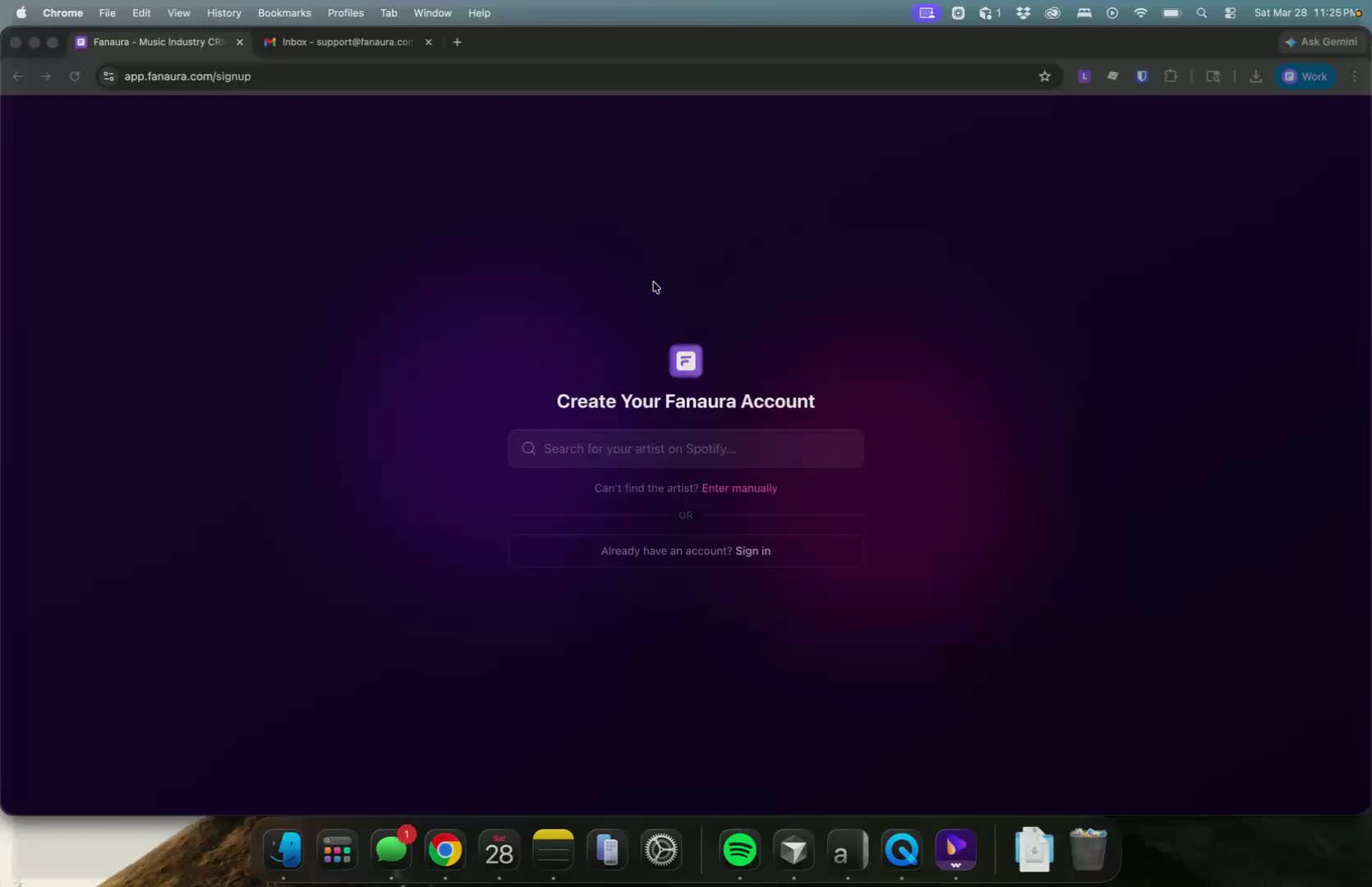
The onboarding flow has several steps, shown as progress dots at the top of the screen: For artists:- Connect your artist (Spotify search or manual entry)
- Identity verification via Instagram DM
- Welcome tour (3 screens)
- Launch your dashboard
- Tell us about yourself (your name and email)
- Create the artist’s account (their login credentials)
- Verify the artist’s email (OTP code)
- Connect the artist on Spotify
- Welcome tour
- Launch the dashboard
Step 1: Connect Your Artist
Searching on Spotify
When you reach this step, you will see a search bar with the prompt “Type the artist name…” Start typing and Fanaura will search Spotify in real time (with a 300ms debounce so it does not fire on every keystroke). Search results appear below the input as a scrollable list. Each result shows:- Artist profile photo (or a music icon placeholder if none exists)
- Artist name
- Follower count (formatted as “1.2K”, “3.5M”, etc.)
- “CLAIMED” badge if that artist has already been registered on Fanaura by someone else
Important: If the artist you are looking for shows a “CLAIMED” badge, it means another account has already registered that Spotify profile. Contact Fanaura support if you believe this is an error.
Manual Entry
If your artist is not on Spotify yet (or you cannot find them), click the “Can’t find the artist? Enter manually” link below the search results. In manual mode you can:- Type the artist or band name directly
- Upload a profile photo — click the dashed circle to upload a square image (at least 400x400 pixels recommended)
Step 2: Identity Verification
Once you select a Spotify artist, Fanaura automatically starts the identity verification process. This step confirms that you (or your team) actually represent the artist.How Verification Works
- Fanaura looks up the artist’s Instagram handle using cross-referenced data from Wikidata, MusicBrainz, and other public databases.
- A one-time verification code (OTP) is generated and displayed on your screen.
- You send that code as a DM to @fanaura.ai on Instagram from the artist’s official Instagram account.
- Fanaura verifies the DM came from the expected Instagram account and marks your identity as verified.
On the Verification Card
When verification is active, you will see a purple card with:- Instructions: “Send the code below as a DM to @fanaura.ai on Instagram from @artisthandle”
- The OTP code displayed in large monospace text. You can click the copy button to copy it to your clipboard.
- “Open Instagram DM” button — takes you directly to the Instagram DM conversation with @fanaura.ai
- Expiration notice: “Code expires in 30 minutes”
Verification Status Indicators
A small badge next to the artist name shows the current verification status:| Status | Badge | What It Means |
|---|---|---|
| Pending | Pulsing green dot | Waiting for you to send the DM code |
| Verified | Green circle with checkmark | Identity confirmed — you are good to go |
| Failed | Red circle with X | The code was sent from the wrong Instagram account |
| Manual Review | Blue info icon | No Instagram was found; a Fanaura admin will review |
| Expired | Clock icon | The 30-minute window passed; generate a new code |
If Verification Fails or Expires
- Click “Generate new verification code” to get a fresh OTP
- Make sure you are sending the DM from the artist’s official Instagram, not a personal or fan account
- The DM must go to @fanaura.ai specifically
Manual Review
If Fanaura cannot find an Instagram handle for the artist through public databases, your account goes into manual review. You will see a blue info card explaining:“We couldn’t automatically verify the Instagram for this artist. A Fanaura admin has been notified and will review your request. You can continue setting up your account.”You can still proceed with account creation during manual review. If the review is not approved, a Fanaura representative will contact you.
Your Branded Email
Once you select an artist (via Spotify or manual entry), two email addresses are displayed:Artist Login Email
The email you used to sign up. This is for logging into Fanaura and account security.Artist Branded Email
Automatically generated in the formatartistname@mail.fanaura.com. This branded email is used for fan-facing communications — presave confirmations, marketing blasts, and launch notifications. It is created automatically from your artist name (special characters removed, lowercase).
Example: If your artist name is “Luna Waves”, your branded email will be lunawaves@mail.fanaura.com.
If the base slug is already taken by another artist, a number suffix is added automatically (e.g., lunawaves2@mail.fanaura.com).
Step 3: Create Your Account
Click the “Create Account” button (or “Verified — Create Account” if verification completed). Fanaura will:- Create your artist record in the database
- Generate your unique artist slug (used for smart link URLs)
- Upload your profile image (if provided manually)
- Set up your branded email
- Create default wrapper settings (the fan data collection popup on your smart links)
- If applicable, create a pending team member invitation and send an onboarding email
Step 4: Welcome Tour
After your account is created, you are taken through a three-screen welcome experience:Screen 1: “This isn’t just another marketing platform.”
A visual overview of how Fanaura connects presaves, merch orders, and tour RSVPs into one system. The key message: every piece of data flows into Smart Launches and AI Insights.Screen 2: “Your data isn’t locked away.”
Three feature highlights:- Pre-save dates become triggers — release dates automatically fire SMS reminders and email campaigns
- Fan data powers everything — location, platform preferences, and engagement history are all usable in your launches
- AI that actually knows your data — ask questions, get insights, and execute actions based on your real data
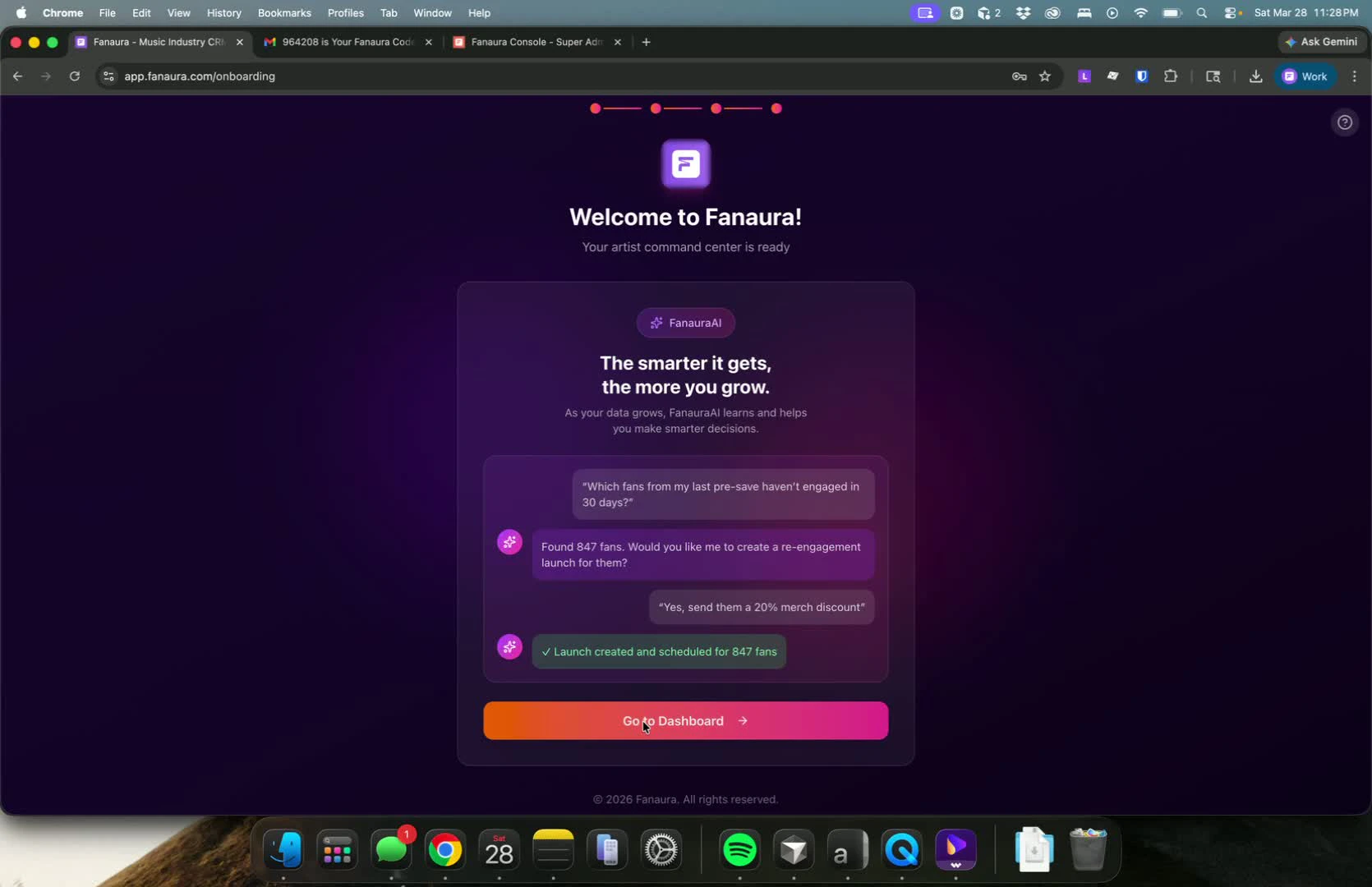
Screen 3: “The smarter it gets, the more you grow.”
A preview of FanauraAI showing a sample conversation:“Which fans from my last pre-save haven’t engaged in 30 days?” “Found 847 fans. Would you like me to create a re-engagement launch for them?” “Yes, send them a 20% merch discount.” “Launch created and scheduled for 847 fans.”
Step 5: Launch Your Dashboard
Click “Launch Dashboard” and you are in. You will land on the Fanaura dashboard — your real-time command center. From here, you can start creating assets, building launches, and collecting fan data.What Happens Behind the Scenes
When your account is created during onboarding, Fanaura sets up several things automatically:- Wrapper settings are enabled by default with triggers for page load, presave, merch, and RSVP actions. This means your smart links will start collecting fan data immediately.
- A default welcome message is set: “Join to get exclusive updates and early access to new releases!”
- Your artist slug is generated and reserved for smart link URLs.
- If you are going through the team member flow, a pending team member invitation is created and an onboarding email is sent to the team member’s personal email.
- If manual review was required, an under-review notification email is sent to both you and the Fanaura admin team.
Troubleshooting
”Not authenticated. Please try again.”
Your session expired during onboarding. Go back to the signup page and log in again.The page redirects me back to /signup
Your email has not been verified yet. Check your inbox for the verification code and complete that step first.The page redirects me to /assets
You have already completed onboarding. Your artist profile exists and you are ready to use Fanaura.Spotify search returns no results
Make sure you are spelling the artist name correctly. Try shorter search terms. If the artist is very new or not on Spotify, use the manual entry option.Verification takes forever
Make sure you sent the code from the correct Instagram account. The DM must be sent to @fanaura.ai. Check that you copied the code correctly (no extra spaces). If all else fails, click “Generate new verification code.”Next Steps
Now that your account is set up, it is time to create your first campaign:- Your First Presave Campaign — The quickest way to start collecting fan data.
- Navigation Guide — Learn your way around the dashboard.
- Inviting Your Team — Add your manager, label, or marketing team.