> ## Documentation Index
> Fetch the complete documentation index at: https://help.fanaura.com/llms.txt
> Use this file to discover all available pages before exploring further.
# Onboarding
> Step-by-step guide from signup through Spotify and Instagram verification to your Fanaura dashboard.
This guide walks you through artist onboarding end to end: choosing your artist, creating your account, verifying your email and Spotify ownership, and landing on your dashboard.
The onboarding flow shows progress at the top of the screen so you always know which step you are on.
***
## Step-by-step guide to onboarding with Fanaura
### 1. Start the onboarding process
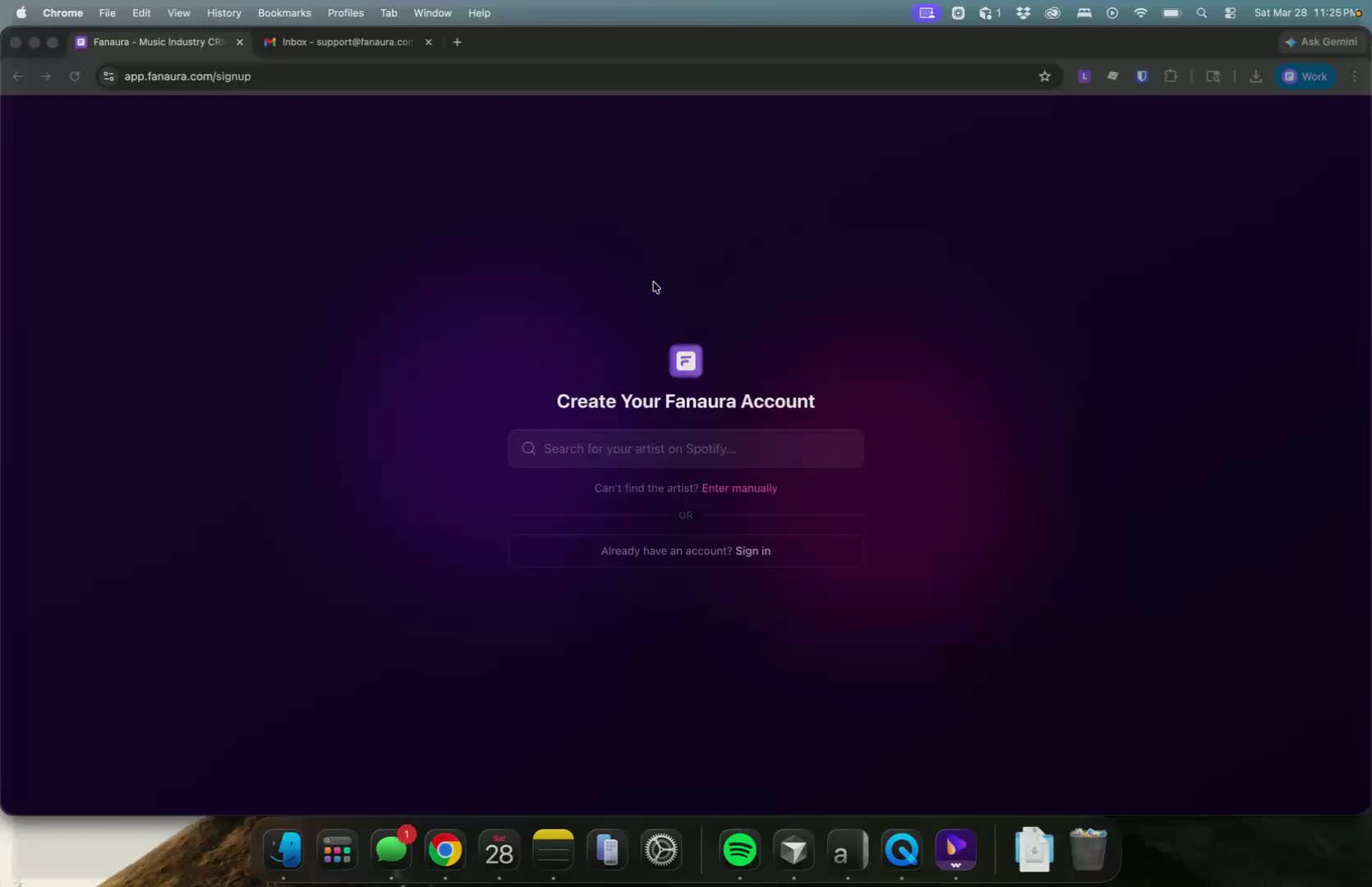 * Begin by entering your first and last name or your Spotify stage name.
* Select the correct artist account and click **Continue**.
If an artist shows a **CLAIMED** badge, another account already registered that Spotify profile. Contact [Fanaura support](/reference/support) if that is a mistake.
***
### 2. Enter personal information
* Input your first and last name.
* Provide a personal email address that you will use to log in.
***
### 3. Set up your account security
* Enter your cell phone number.
* Create a password that meets the following criteria:
* At least 8 characters long
* Contains an uppercase letter
* Contains a lowercase letter
* Includes a number
* Has a special character
***
### 4. Agree to terms and create account
* Read and agree to the Terms of Service and Privacy Policy.
* Click **Create Account**.
***
### 5. Verify your email
* Check your email for a 6-digit verification code sent by Fanaura.
* Enter the code on the verification screen to continue.
***
### 6. Verify your Spotify profile ownership
* After email verification, you will need to verify ownership of your Spotify profile.
* This step helps prevent fraud and keep signups high quality.
***
### 7. Send verification code via Instagram
* Copy the verification code shown on screen.
* Open Instagram and send a DM to **@fanaura.ai** with the code from an approved Instagram account (the artist's official account).
Fanaura may show the expected Instagram handle and a button to open the DM conversation. The code typically expires in 30 minutes; generate a new one if needed.
***
### 8. Auto-verification
* Once you send the DM, your account can auto-verify.
* **Note:** Artists with fewer than 100,000 followers on Spotify may not need to complete this Instagram verification step (the product will indicate what applies to you).
***
### 9. Complete onboarding
* After verification, you are set to use Fanaura.
***
### 10. Access your dashboard
* Begin by entering your first and last name or your Spotify stage name.
* Select the correct artist account and click **Continue**.
If an artist shows a **CLAIMED** badge, another account already registered that Spotify profile. Contact [Fanaura support](/reference/support) if that is a mistake.
***
### 2. Enter personal information
* Input your first and last name.
* Provide a personal email address that you will use to log in.
***
### 3. Set up your account security
* Enter your cell phone number.
* Create a password that meets the following criteria:
* At least 8 characters long
* Contains an uppercase letter
* Contains a lowercase letter
* Includes a number
* Has a special character
***
### 4. Agree to terms and create account
* Read and agree to the Terms of Service and Privacy Policy.
* Click **Create Account**.
***
### 5. Verify your email
* Check your email for a 6-digit verification code sent by Fanaura.
* Enter the code on the verification screen to continue.
***
### 6. Verify your Spotify profile ownership
* After email verification, you will need to verify ownership of your Spotify profile.
* This step helps prevent fraud and keep signups high quality.
***
### 7. Send verification code via Instagram
* Copy the verification code shown on screen.
* Open Instagram and send a DM to **@fanaura.ai** with the code from an approved Instagram account (the artist's official account).
Fanaura may show the expected Instagram handle and a button to open the DM conversation. The code typically expires in 30 minutes; generate a new one if needed.
***
### 8. Auto-verification
* Once you send the DM, your account can auto-verify.
* **Note:** Artists with fewer than 100,000 followers on Spotify may not need to complete this Instagram verification step (the product will indicate what applies to you).
***
### 9. Complete onboarding
* After verification, you are set to use Fanaura.
***
### 10. Access your dashboard
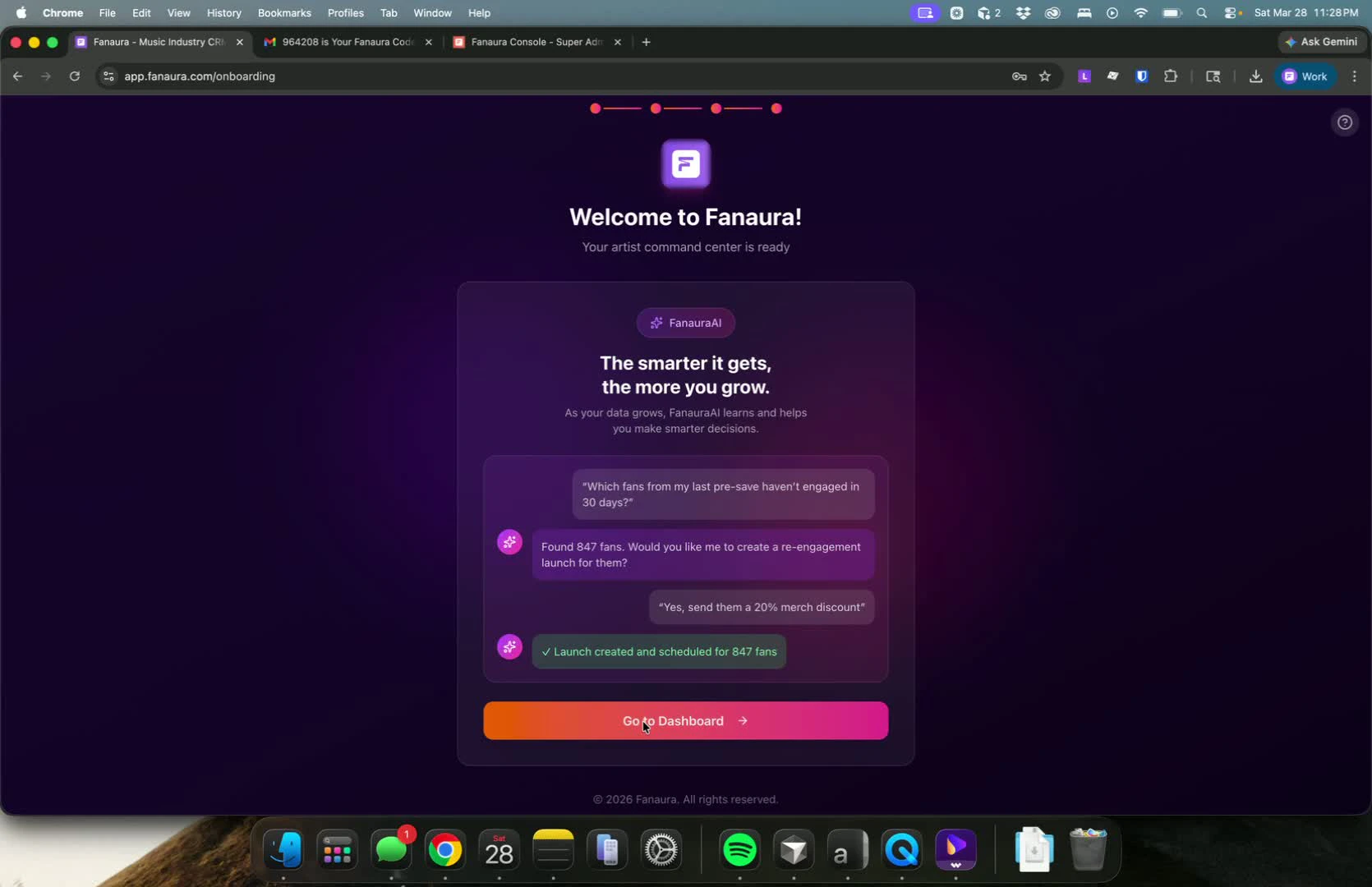 * Go to your dashboard to start launching music, merchandise, and tours.
Your first win after onboarding is often a presave campaign. See [Your first presave campaign](/getting-started/first-presave-campaign).
***
## Team member onboarding
If you were invited to an artist team, your steps can include entering your own details, creating the artist's login, verifying their email, connecting Spotify, then the welcome tour. The screens match the same overall flow above; your progress indicator may include extra steps.
***
## Behind the scenes (quick reference)
When your artist account is created, Fanaura typically:
* Creates your **artist slug** for smart links
* Sets up your **branded sending email** (for example `yourartist@mail.fanaura.com`)
* Enables **wrapper** defaults so smart links can collect fan data
* Sends notifications if **manual review** is required for verification
***
## Troubleshooting
Your session expired during onboarding. Return to [signup](https://app.fanaura.com/signup) and sign in again.
Your email may not be verified yet. Complete step 5 (email code) first.
You may have already finished onboarding. Log in and continue from the dashboard.
Send the DM from the **artist's official** Instagram account to **@fanaura.ai**. Copy the code exactly. Generate a new code if it expired.
Try a shorter search term or check spelling. If the artist is not on Spotify yet, use manual artist entry if the flow offers it, or contact support.
***
## Next steps
Start collecting fan data with a presave.
Learn your way around the dashboard.
Add your manager, label, or marketing team.
* Go to your dashboard to start launching music, merchandise, and tours.
Your first win after onboarding is often a presave campaign. See [Your first presave campaign](/getting-started/first-presave-campaign).
***
## Team member onboarding
If you were invited to an artist team, your steps can include entering your own details, creating the artist's login, verifying their email, connecting Spotify, then the welcome tour. The screens match the same overall flow above; your progress indicator may include extra steps.
***
## Behind the scenes (quick reference)
When your artist account is created, Fanaura typically:
* Creates your **artist slug** for smart links
* Sets up your **branded sending email** (for example `yourartist@mail.fanaura.com`)
* Enables **wrapper** defaults so smart links can collect fan data
* Sends notifications if **manual review** is required for verification
***
## Troubleshooting
Your session expired during onboarding. Return to [signup](https://app.fanaura.com/signup) and sign in again.
Your email may not be verified yet. Complete step 5 (email code) first.
You may have already finished onboarding. Log in and continue from the dashboard.
Send the DM from the **artist's official** Instagram account to **@fanaura.ai**. Copy the code exactly. Generate a new code if it expired.
Try a shorter search term or check spelling. If the artist is not on Spotify yet, use manual artist entry if the flow offers it, or contact support.
***
## Next steps
Start collecting fan data with a presave.
Learn your way around the dashboard.
Add your manager, label, or marketing team.