> ## Documentation Index
> Fetch the complete documentation index at: https://help.fanaura.com/llms.txt
> Use this file to discover all available pages before exploring further.
# Adding a music asset — building a pre-save campaign
> Ingest a music asset in Fanaura to launch a pre-save campaign, capture fan data, and promote your track. Fanaura does not distribute music to streaming services.
Fanaura is a **fan marketing and promotion** platform — not a music distributor. We do not upload or deliver your music to digital service providers (DSPs). Your distributor handles distribution.
What you do here is **ingest a music asset** as the first step toward a **pre-save campaign**: a fan-facing page and smart link that collects emails, phones, and engagement before release day, then hands fans off to stream when your track is live.
**Music asset** = the track record in Fanaura (title, artwork, codes, dates, pre-save settings). **Pre-save campaign** = the fan journey and links built around that asset. You are not "releasing" through Fanaura; you are **building promotion and your fan list**.
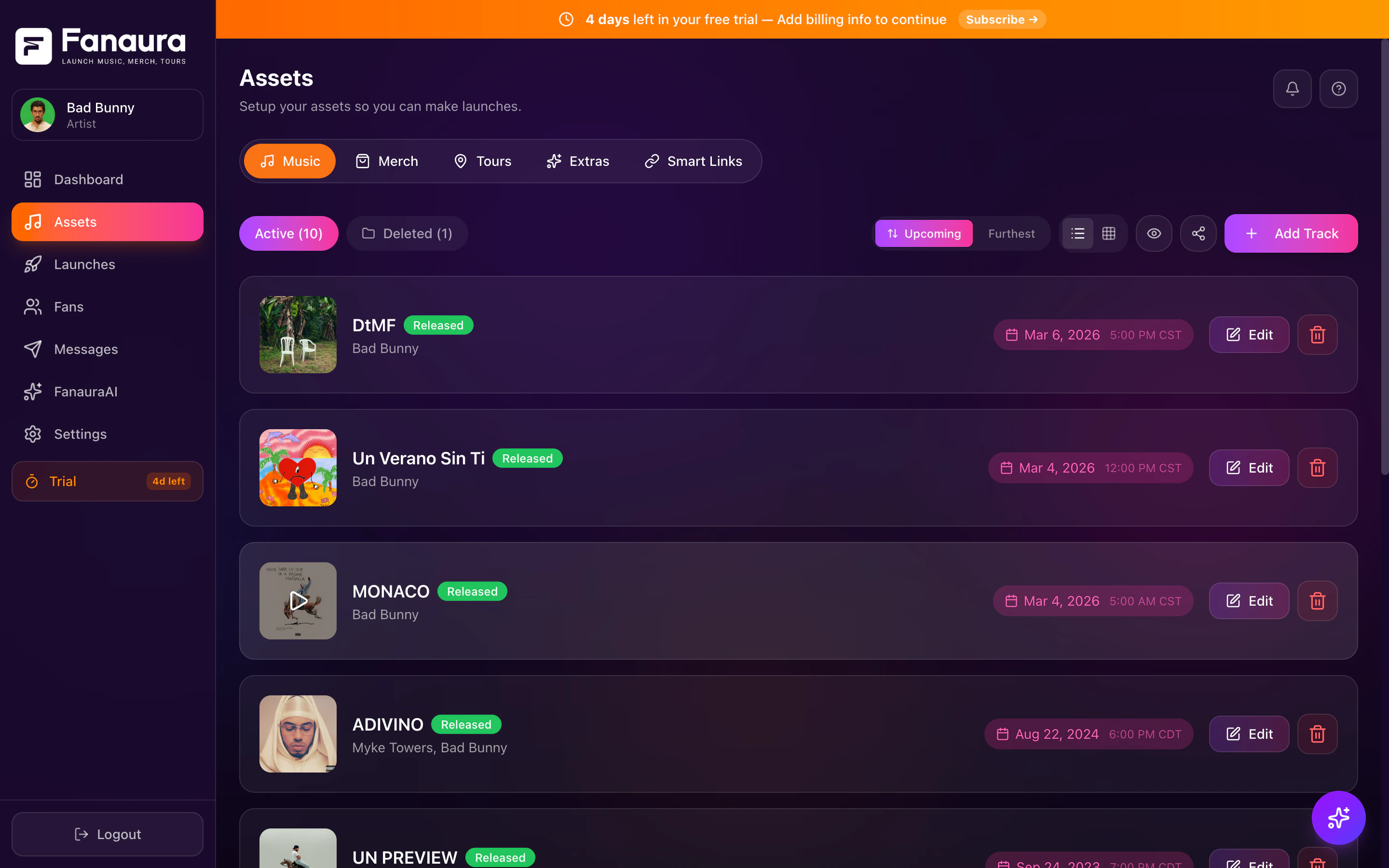
To start: go to **Assets**, open the **Music** tab, and click **+ Add Track** (or use Fanaura AI music ingestion if you prefer the guided card flow). The steps below match the in-app wizard.
 ***
## How to ingest your music asset for a pre-save campaign
### 1. Add track
* Begin by adding your track.
* Type in your song name.
* Optionally upload artwork if it is available.
***
### 2. Understand artwork status
* Many artists do not have final artwork at this stage.
* It is fine to continue without artwork if you are still early in the campaign.
***
### 3. Input ISRC and UPC codes
* Enter your **ISRC** so stream links can be associated with your recording when the track is out on platforms (your distributor provides the ISRC).
* **UPC** may be collected for reference; treat it as internal / future use rather than a live integration.
Need more detail on codes? See [ISRC and UPC explained](/assets/music/isrc-and-upc).
***
### 4. Set announcement date
* Set a date for when you plan to announce your track.
* This is optional but useful for automating communications around your rollout.
***
### 5. Set pre-save opens date
* Choose when the pre-save experience should become available to fans.
* Many artists choose **Same as announcement** so fans can pre-save as soon as the track is publicized.
***
### 6. Set release date and add track
* Set your **release date and time** to match your real go-live on streaming platforms (set with your distributor).
* Use the control to proceed (for example **Add track** / continue) when you are ready for the next step.
Fanaura uses this date to time pre-save conversion and fan messaging. It should match what your distributor has scheduled so pre-saves line up with when the song is actually live.
***
### 7. Configure the pre-save builder
* Open the **pre-save builder** for your track.
* Turn individual digital service providers on or off to match where you want fans to pre-save.
***
### 8. Ensure ISRC is added before release
* Plan to have your **ISRC** saved in Fanaura **before** the release date.
* That is what allows stream links to line up when the track goes live (distribution still happens through your distributor).
***
### 9. Finalize and apply changes
* Review your choices and **apply** / save so the fan-facing experience matches your plan.
* Double-check artwork and dates if you have updated anything since the first steps.
***
### 10. Confirm everything is set for release
* Confirm your **ISRC** is on the asset and that you are ready for stream links when the track is live.
* When release day arrives, your pre-save flow can transition fans from **pre-save** to **stream** — still as promotion; Fanaura is not your distributor.
***
## Quick reminders
**Pre-save first, fans first.** The goal of ingesting the asset is a campaign that grows your owned audience (email, SMS opt-ins, behavior) — not replacing your distributor.
**Share your smart link everywhere** — bios, stories, blasts, and automations — so the asset you built actually collects data.
For behavior after you save the asset (analytics, editing, archiving), see [Managing releases](/assets/music/managing-releases) — in the product this may still appear as "release," but it refers to your **music asset and its pre-save campaign**.
***
## Next steps
Where codes come from and how Fanaura uses them.
How pre-saves work end to end for fans.
How links attach to your asset around release.
Edit settings, dates, and campaign details after creation.
***
## How to ingest your music asset for a pre-save campaign
### 1. Add track
* Begin by adding your track.
* Type in your song name.
* Optionally upload artwork if it is available.
***
### 2. Understand artwork status
* Many artists do not have final artwork at this stage.
* It is fine to continue without artwork if you are still early in the campaign.
***
### 3. Input ISRC and UPC codes
* Enter your **ISRC** so stream links can be associated with your recording when the track is out on platforms (your distributor provides the ISRC).
* **UPC** may be collected for reference; treat it as internal / future use rather than a live integration.
Need more detail on codes? See [ISRC and UPC explained](/assets/music/isrc-and-upc).
***
### 4. Set announcement date
* Set a date for when you plan to announce your track.
* This is optional but useful for automating communications around your rollout.
***
### 5. Set pre-save opens date
* Choose when the pre-save experience should become available to fans.
* Many artists choose **Same as announcement** so fans can pre-save as soon as the track is publicized.
***
### 6. Set release date and add track
* Set your **release date and time** to match your real go-live on streaming platforms (set with your distributor).
* Use the control to proceed (for example **Add track** / continue) when you are ready for the next step.
Fanaura uses this date to time pre-save conversion and fan messaging. It should match what your distributor has scheduled so pre-saves line up with when the song is actually live.
***
### 7. Configure the pre-save builder
* Open the **pre-save builder** for your track.
* Turn individual digital service providers on or off to match where you want fans to pre-save.
***
### 8. Ensure ISRC is added before release
* Plan to have your **ISRC** saved in Fanaura **before** the release date.
* That is what allows stream links to line up when the track goes live (distribution still happens through your distributor).
***
### 9. Finalize and apply changes
* Review your choices and **apply** / save so the fan-facing experience matches your plan.
* Double-check artwork and dates if you have updated anything since the first steps.
***
### 10. Confirm everything is set for release
* Confirm your **ISRC** is on the asset and that you are ready for stream links when the track is live.
* When release day arrives, your pre-save flow can transition fans from **pre-save** to **stream** — still as promotion; Fanaura is not your distributor.
***
## Quick reminders
**Pre-save first, fans first.** The goal of ingesting the asset is a campaign that grows your owned audience (email, SMS opt-ins, behavior) — not replacing your distributor.
**Share your smart link everywhere** — bios, stories, blasts, and automations — so the asset you built actually collects data.
For behavior after you save the asset (analytics, editing, archiving), see [Managing releases](/assets/music/managing-releases) — in the product this may still appear as "release," but it refers to your **music asset and its pre-save campaign**.
***
## Next steps
Where codes come from and how Fanaura uses them.
How pre-saves work end to end for fans.
How links attach to your asset around release.
Edit settings, dates, and campaign details after creation.