> ## Documentation Index
> Fetch the complete documentation index at: https://help.fanaura.com/llms.txt
> Use this file to discover all available pages before exploring further.
# Assets Overview
> Everything you create and promote lives in Assets — music releases, tours, merchandise, and extras. Learn how to organize, manage, and showcase your content.
Assets are the heart of your Fanaura account. Every piece of content you create, promote, and share with fans lives here — your music releases, tours, merchandise, and extras like giveaways, livestreams, and VIP experiences.
Think of Assets as your content library. Each asset you add gets its own smart link, its own analytics, and its own place on your public artist page.
 ***
## The Four Asset Categories
Fanaura organizes your content into four main categories, each with its own tab on the Assets page:
Your tracks as **music assets**: build **pre-save campaigns**, smart links, and fan data capture. Fanaura promotes your music; your distributor places it on streaming platforms. Each asset gets a fan-facing page with platform buttons, artwork, and opt-ins.
Your tours and live events. Create a tour, add dates and venues, configure pre-sale and on-sale settings, manage support artists, and generate embeddable tour widgets for your website. Each tour gets its own smart link page where fans can RSVP and buy tickets.
Your merchandise, synced directly from your Shopify store. Once you connect Shopify, your products appear here automatically. You control which products are visible on your smart links, and every click through to your Shopify checkout is tracked.
Everything that does not fit neatly into Music, Merch, or Tours. This includes music videos, lyric videos, livestreams, giveaways, meetups, VIP experiences, Q\&A sessions, and custom content. Extras keep your artist page dynamic and give fans more ways to engage with you.
***
## Navigating the Assets Page
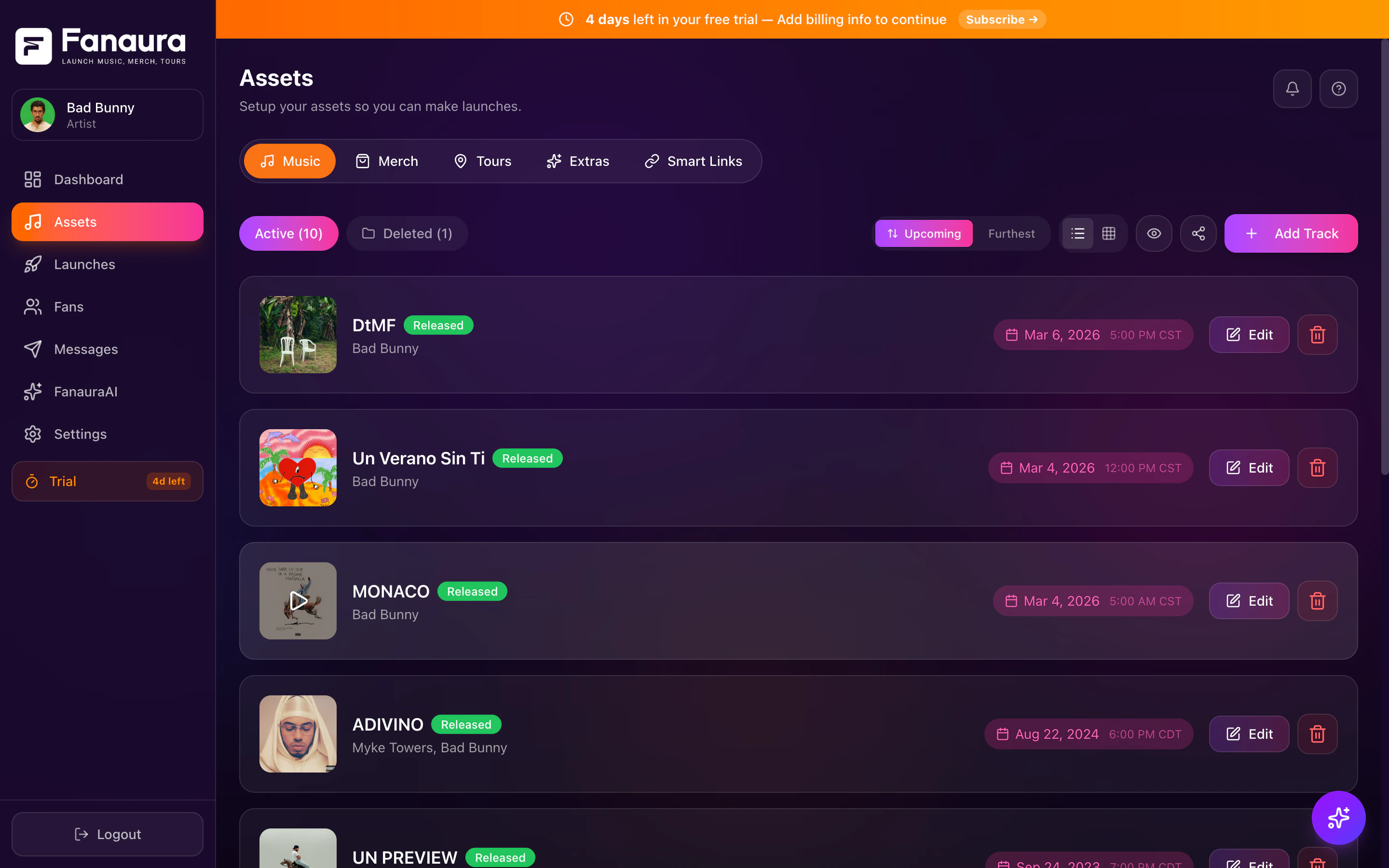
When you open the Assets page, you will see a tab bar across the top with **Music**, **Tours**, **Merch**, and **Extras**. Click any tab to switch between categories. The URL updates to reflect your current tab (for example, `/assets?tab=tours`), so you can bookmark or share direct links to specific tabs.
***
## Grid View vs. List View
Every asset category supports two display modes:
A compact, vertical list showing each asset with its key details (title, date, status) on a single row. This is the default for Music, Tours, and Merch. Best when you have many assets and want to scan quickly.
A visual card layout showing artwork thumbnails, images, or product photos in a responsive grid. This is the default for Extras. Best when you want to see your content visually.
Toggle between views using the **Grid** and **List** icons in the top-right corner of each tab. Your preference is saved locally, so Fanaura remembers which view you prefer for each category.
***
## Drag-to-Reorder
You can reorder your assets by dragging and dropping them. This controls the order fans see your content on your public smart link page.
Drag-to-reorder works in list view. Make sure you are in list view mode.
Grab the **drag handle** (the six-dot grip icon) on the left side of any asset row.
Drag the asset up or down to your desired position.
Release to drop it in place. The new order saves automatically.
This works for music releases, merch products, and extras.
Put your newest or most important release at the top. Fans see your assets in the order you set here.
***
## Search
Each asset tab includes a **search bar** at the top. Type any part of a title, venue name, or product name to instantly filter your assets. This is especially helpful when you have dozens of releases or products and need to find something fast.
***
## Visibility Toggle
Every asset has a **visibility toggle** — a green/gray switch on the right side of each row. This controls whether the asset appears on your public smart link page.
| State | Meaning |
| -------------- | ---------------------------------------------------------------- |
| **Green (on)** | The asset is visible to fans on your smart link page |
| **Gray (off)** | The asset is hidden from fans but still exists in your dashboard |
Use this to:
* Hide old releases you do not want fans to see
* Temporarily remove a product while it is out of stock
* Prepare an asset before making it public
* Keep your smart link page clean and focused
Toggling visibility does not delete the asset or its data. You can turn it back on at any time.
***
## Smart Links
Every asset you create automatically gets its own **smart link** — a unique, shareable URL that takes fans to a beautiful landing page for that specific piece of content.
* **Music smart links** show your artwork, streaming platform buttons, and pre-save options.
* **Tour smart links** show your tour dates, venues, ticket buttons, and RSVP options.
* **Merch smart links** take fans directly to your Shopify checkout.
* **Extras smart links** show the experience details with join/subscribe options.
Your smart link URL follows the format: `fanaura.com/your-artist-name/asset-slug`
You can copy any asset's smart link by clicking the **link icon** or **Copy Link** button next to it.
***
## Adding New Assets
Each tab has a prominent **"+ Add"** button (or **"+ Add Track"**, **"+ New Tour"**, etc.) that opens the creation flow for that asset type. The creation process varies by category:
| Category | Creation Flow |
| ---------- | -------------------------------------------------------------------------------------------------------- |
| **Music** | Opens a multi-step wizard where you enter track details, ISRC/UPC codes, artwork, and dates |
| **Tours** | Takes you to a full-page tour builder with event management, support artists, and pre-sale configuration |
| **Merch** | Products sync automatically from Shopify — no manual adding needed |
| **Extras** | Opens a wizard where you choose the type of extra and fill in the details |
***
## What Happens When You Create an Asset
When you create any new asset, Fanaura does several things automatically:
A clean, SEO-friendly URL slug is created for your asset.
Your artwork, details, and action buttons are assembled into a beautiful page.
Page views, clicks, conversions, and fan data are recorded from the moment the asset goes live.
You can trigger automations based on fan interactions with that asset.
Unless you toggle visibility off, the asset appears on your smart link page.
***
## Quick Tips
**Start with Music.** If you are new to Fanaura, add your latest release first. It is the fastest way to see the platform in action and start collecting fan data.
**Reorder strategically.** Put your highest-priority asset at the top. That is what fans see first.
**Keep it organized.** Use visibility toggles to keep your smart link page clean. Fans should only see what is relevant right now.
**Use Extras for engagement.** Giveaways, Q\&A sessions, and VIP experiences are powerful tools for building deeper fan relationships beyond just music and merch.
**Check your analytics.** Every asset tracks engagement. Use these insights to understand what resonates with your fans and double down on what works.
***
## Next Steps
Ingest a music asset and configure your pre-save campaign step by step.
Set up your tour with dates, venues, and ticket links.
Sync your merchandise from your Shopify store.
Create giveaways, VIP experiences, livestreams, and more.
***
## The Four Asset Categories
Fanaura organizes your content into four main categories, each with its own tab on the Assets page:
Your tracks as **music assets**: build **pre-save campaigns**, smart links, and fan data capture. Fanaura promotes your music; your distributor places it on streaming platforms. Each asset gets a fan-facing page with platform buttons, artwork, and opt-ins.
Your tours and live events. Create a tour, add dates and venues, configure pre-sale and on-sale settings, manage support artists, and generate embeddable tour widgets for your website. Each tour gets its own smart link page where fans can RSVP and buy tickets.
Your merchandise, synced directly from your Shopify store. Once you connect Shopify, your products appear here automatically. You control which products are visible on your smart links, and every click through to your Shopify checkout is tracked.
Everything that does not fit neatly into Music, Merch, or Tours. This includes music videos, lyric videos, livestreams, giveaways, meetups, VIP experiences, Q\&A sessions, and custom content. Extras keep your artist page dynamic and give fans more ways to engage with you.
***
## Navigating the Assets Page
When you open the Assets page, you will see a tab bar across the top with **Music**, **Tours**, **Merch**, and **Extras**. Click any tab to switch between categories. The URL updates to reflect your current tab (for example, `/assets?tab=tours`), so you can bookmark or share direct links to specific tabs.
***
## Grid View vs. List View
Every asset category supports two display modes:
A compact, vertical list showing each asset with its key details (title, date, status) on a single row. This is the default for Music, Tours, and Merch. Best when you have many assets and want to scan quickly.
A visual card layout showing artwork thumbnails, images, or product photos in a responsive grid. This is the default for Extras. Best when you want to see your content visually.
Toggle between views using the **Grid** and **List** icons in the top-right corner of each tab. Your preference is saved locally, so Fanaura remembers which view you prefer for each category.
***
## Drag-to-Reorder
You can reorder your assets by dragging and dropping them. This controls the order fans see your content on your public smart link page.
Drag-to-reorder works in list view. Make sure you are in list view mode.
Grab the **drag handle** (the six-dot grip icon) on the left side of any asset row.
Drag the asset up or down to your desired position.
Release to drop it in place. The new order saves automatically.
This works for music releases, merch products, and extras.
Put your newest or most important release at the top. Fans see your assets in the order you set here.
***
## Search
Each asset tab includes a **search bar** at the top. Type any part of a title, venue name, or product name to instantly filter your assets. This is especially helpful when you have dozens of releases or products and need to find something fast.
***
## Visibility Toggle
Every asset has a **visibility toggle** — a green/gray switch on the right side of each row. This controls whether the asset appears on your public smart link page.
| State | Meaning |
| -------------- | ---------------------------------------------------------------- |
| **Green (on)** | The asset is visible to fans on your smart link page |
| **Gray (off)** | The asset is hidden from fans but still exists in your dashboard |
Use this to:
* Hide old releases you do not want fans to see
* Temporarily remove a product while it is out of stock
* Prepare an asset before making it public
* Keep your smart link page clean and focused
Toggling visibility does not delete the asset or its data. You can turn it back on at any time.
***
## Smart Links
Every asset you create automatically gets its own **smart link** — a unique, shareable URL that takes fans to a beautiful landing page for that specific piece of content.
* **Music smart links** show your artwork, streaming platform buttons, and pre-save options.
* **Tour smart links** show your tour dates, venues, ticket buttons, and RSVP options.
* **Merch smart links** take fans directly to your Shopify checkout.
* **Extras smart links** show the experience details with join/subscribe options.
Your smart link URL follows the format: `fanaura.com/your-artist-name/asset-slug`
You can copy any asset's smart link by clicking the **link icon** or **Copy Link** button next to it.
***
## Adding New Assets
Each tab has a prominent **"+ Add"** button (or **"+ Add Track"**, **"+ New Tour"**, etc.) that opens the creation flow for that asset type. The creation process varies by category:
| Category | Creation Flow |
| ---------- | -------------------------------------------------------------------------------------------------------- |
| **Music** | Opens a multi-step wizard where you enter track details, ISRC/UPC codes, artwork, and dates |
| **Tours** | Takes you to a full-page tour builder with event management, support artists, and pre-sale configuration |
| **Merch** | Products sync automatically from Shopify — no manual adding needed |
| **Extras** | Opens a wizard where you choose the type of extra and fill in the details |
***
## What Happens When You Create an Asset
When you create any new asset, Fanaura does several things automatically:
A clean, SEO-friendly URL slug is created for your asset.
Your artwork, details, and action buttons are assembled into a beautiful page.
Page views, clicks, conversions, and fan data are recorded from the moment the asset goes live.
You can trigger automations based on fan interactions with that asset.
Unless you toggle visibility off, the asset appears on your smart link page.
***
## Quick Tips
**Start with Music.** If you are new to Fanaura, add your latest release first. It is the fastest way to see the platform in action and start collecting fan data.
**Reorder strategically.** Put your highest-priority asset at the top. That is what fans see first.
**Keep it organized.** Use visibility toggles to keep your smart link page clean. Fans should only see what is relevant right now.
**Use Extras for engagement.** Giveaways, Q\&A sessions, and VIP experiences are powerful tools for building deeper fan relationships beyond just music and merch.
**Check your analytics.** Every asset tracks engagement. Use these insights to understand what resonates with your fans and double down on what works.
***
## Next Steps
Ingest a music asset and configure your pre-save campaign step by step.
Set up your tour with dates, venues, and ticket links.
Sync your merchandise from your Shopify store.
Create giveaways, VIP experiences, livestreams, and more.